How to Use
Startup the system
Plug in camera power cable to the socket.
On the laptop startup the software by double-clicking the “SAR-CAM” desktop icon on the upper right corner.
The UI from below should start up with RGB + Thermal video stream windows.
Stop the system
Multiple options:
Close either RGB or Thermal UI window and wait a few seconds
Close the terminal window on the left status bar where debug info visualized
UI
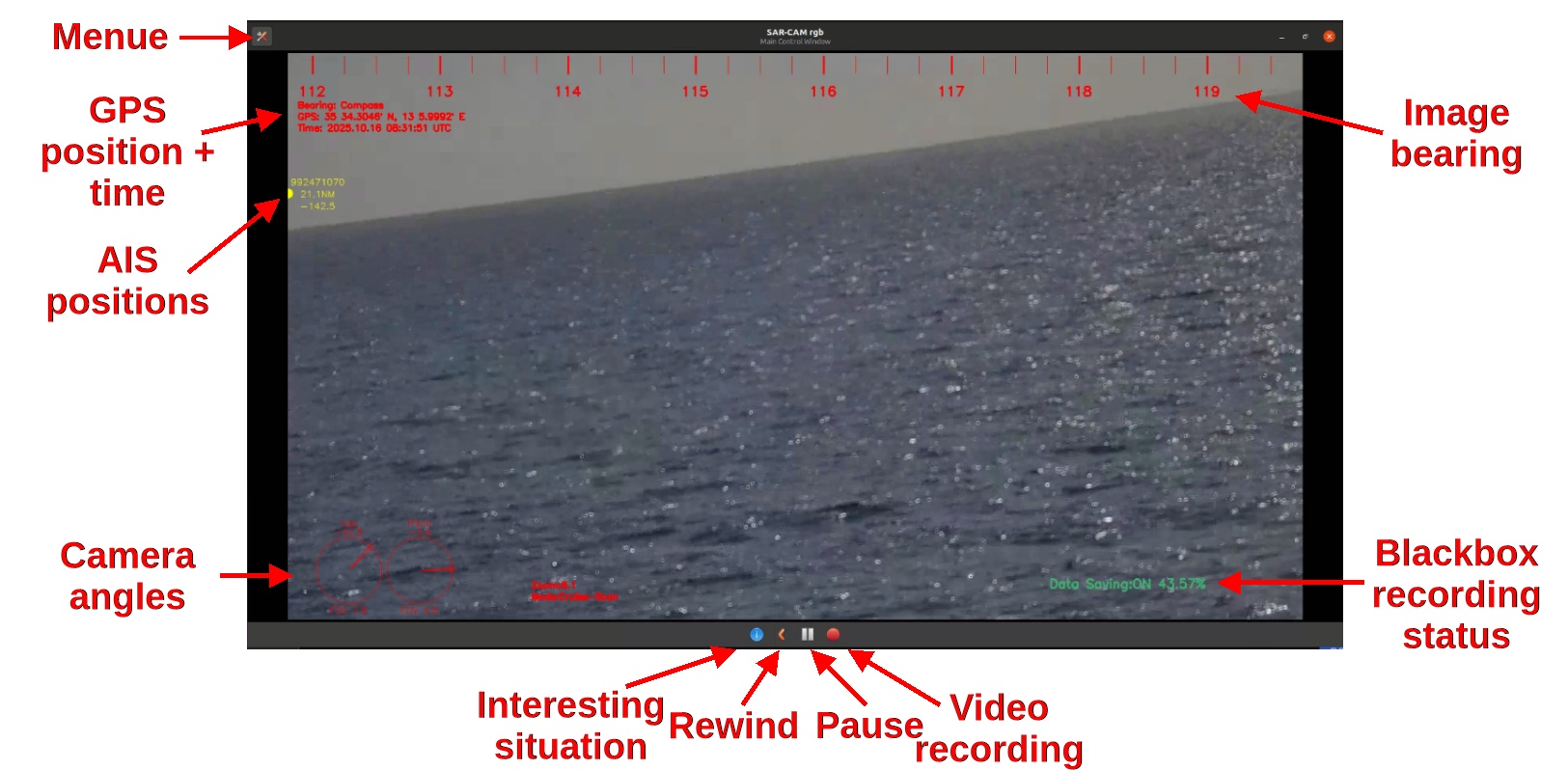
Element |
Description |
|---|---|
Menue |
Top-left button opens the control menu |
GPS position + time |
Current position and UTC timestamp |
AIS positions |
Detected AIS vessel overlays |
Camera angles |
Pan/tilt angles of the camera |
Image bearing |
Bearing of the camera image / in relative mode - angles are starboard |
Interesting situation |
Mark current frame for review |
Rewind |
Go back to a situation in the past |
Pause |
Pause current or rewinded video - useful to stop image |
Video recording |
Start/stop video recording to be stored in Videos folder |
Blackbox recording status |
Indicator for continuous blackbox of all camera data |
Menu
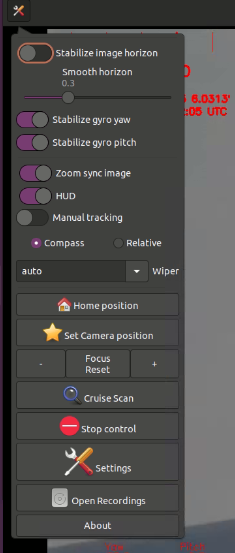
Control |
Function |
|---|---|
Stabilize image horizon |
Software stabilization control |
Stabilize gyro yaw / pitch |
Mechanical gyro stabilization control |
Zoom sync image |
Sync digital zoom with camera FOV |
HUD |
Toggle heads-up display overlay |
Manual tracking |
Enable manual gimbal control |
Compass / Relative |
Switch bearing angle visu mode - relative means relative to ship driving direction |
Wiper |
Start / stop color video lens wiper (thermal not possible/needed) |
Home position |
Return gimbal to home position |
Set Camera position |
Manualy set camera position using position input |
Focus Reset / +/- |
Manual focus control |
Cruise Scan |
Start automated scan pattern |
Stop control |
Stop all PTZ camera control |
Settings |
Open system settings |
Open Recordings |
Browse recorded videos on local pc |
Control the camera
Gamepad
Control is done using a Xbox Controller.

Button |
Function |
+ Shift |
|---|---|---|
Xbox / Guide button |
Activate Shift functions |
|
X |
Cruise Scan |
|
B |
Manual Control |
|
Y |
Stop following |
Toggle bearing UI (compass / relative) |
A |
Toggle gyro pitch stabi |
Toggle gyro yaw stabi |
Back |
Switch camera zoom + focus control |
|
Right Stick |
Move camera pitch + yaw |
Faster camera movement |
D-pad Up / Down |
Change camera movement speed |
|
RB |
Zoom in |
Focus near |
LB |
Zoom out |
Focus far |
Start |
Home Camera positon + zoom |
Dual camera focus reset |
Keyboard
Button |
Function |
|---|---|
ESC |
Stop Follow |
F7 |
Calibrate pitch stabi - daytime only (DMS15 Only) |
F12 |
Thermal camera On/Off (DMS15 Only) |
Automatic boat following
The system tracks boats it finds by itself, and any target you point out to it by hand.
Picking a target
Action |
What happens |
|---|---|
Double click a existing track |
Follow that track. |
Triple click on target |
Put a box where you clicked and follow it. |
Number key |
Follow the boat with that number, shown above its box |
STOP FOLLOW button / |
Stop following and switch to manual mode |
Reading the picture
Box Colour |
Meaning |
|---|---|
Pink |
The camera is following this one |
Orange |
Found by the system, not being followed |
Yellow |
An AIS contact, reported over radio rather than seen by the camera |
Where |
What it shows |
|---|---|
Above the box, left |
The number key that follows this boat. |
Below the box |
Distance in nautical miles. |
Edge of the picture |
A track currently out of view. |
Safety
Never leave the camera gyro stabilization on if you dont use the camera, as it uses motors to stabilize which can wear out over time.
Never point camera towards the sun as this can destroy the thermal sensor. Ensure you dont forget to move back the camera in case you did it nevertheless!
Whats not yet working
Detection of tiny boats at the horizon
In case of problems please also checkout: Troubleshooting.